Help Center

Adding a new service

Learn how to add a new service, configure pricing, payment options, duration, employees, and loyalty points in Openbeauty.

When you want to add a new service, navigate to Appointment Management → Service Price List and click New Service.

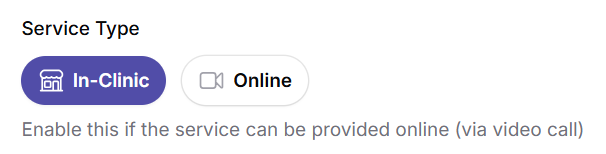
First, select the Service Type. Choose In-Clinic for services provided at your salon, or enable Online if the service can be offered through a video consultation.

Next, select an existing Service Category or create a new category to keep your services organized. Then choose the service Status. A Published service is immediately available for online bookings, while a Draft allows you to save the service without making it visible to customers.

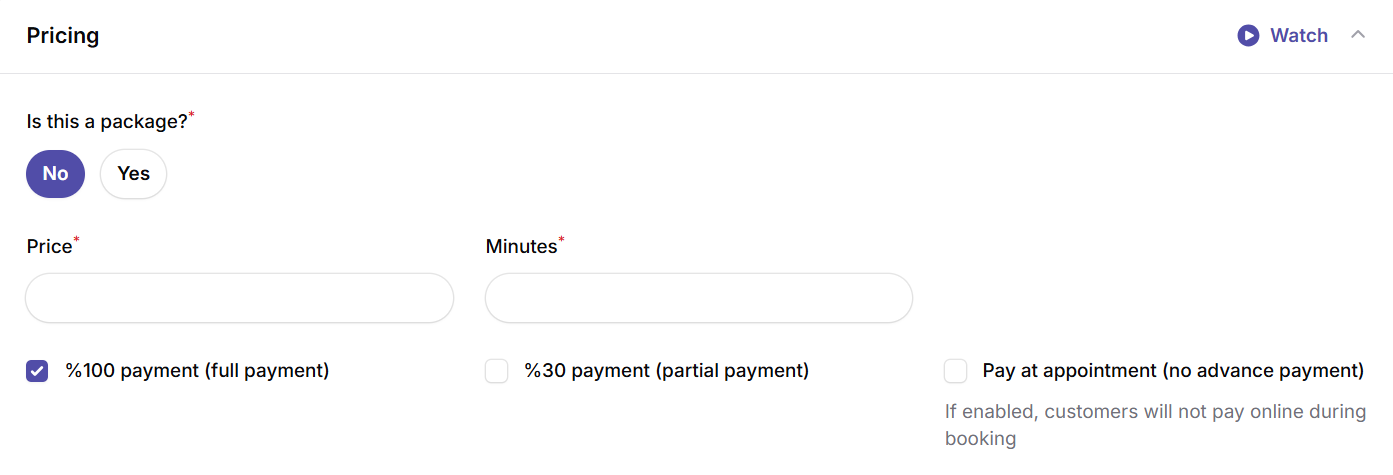
Continue by entering the service Name and, if desired, a Short Description. Under the Pricing section, specify the service Price and the Duration in minutes. After that, choose how customers should pay for the service. You can require 100% payment during booking, request a partial payment (deposit), or allow customers to pay at the appointment, which disables online payment during the booking process.

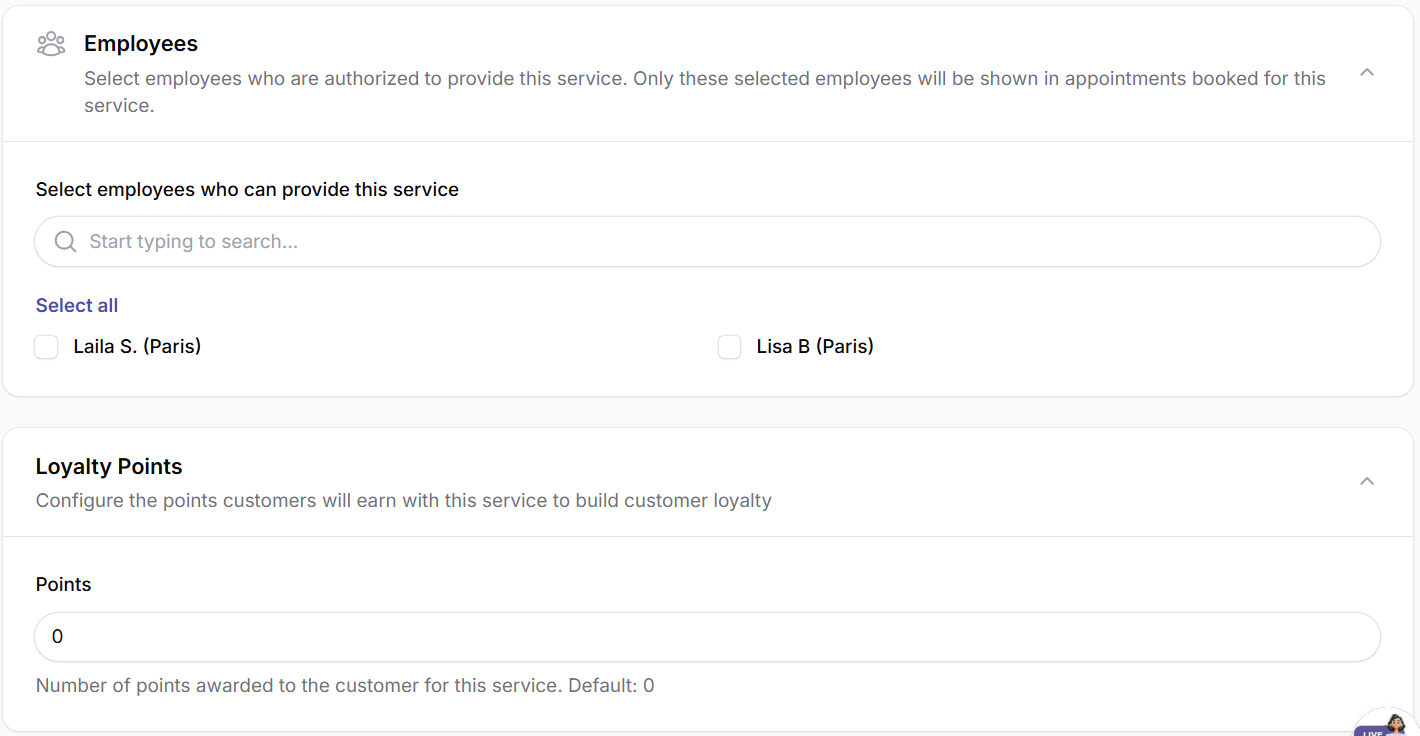
In the Employees section, select the staff members who are authorized to provide this service. Only the employees you assign will be available for customers to choose when booking this service online. Finally, if you use the loyalty program, you can configure how many Loyalty Points customers will earn after completing the service.

Once all required information has been entered, click Create Service to save the new service. If the service status is set to Published, it will immediately become available for online bookings.