

Help Center

Sending a support message

Open a support ticket directly from your admin panel.

The Support Messages section allows you to receive technical support, ask questions, or submit help requests directly from your Openbeauty panel. You can communicate with the Openbeauty support team, view your message history, and track responses in one central location.

In addition to sending support messages, you can also schedule an online support appointment directly from the same screen. This makes it easy to book a meeting with the Openbeauty support team whenever you need assistance or personalized guidance.
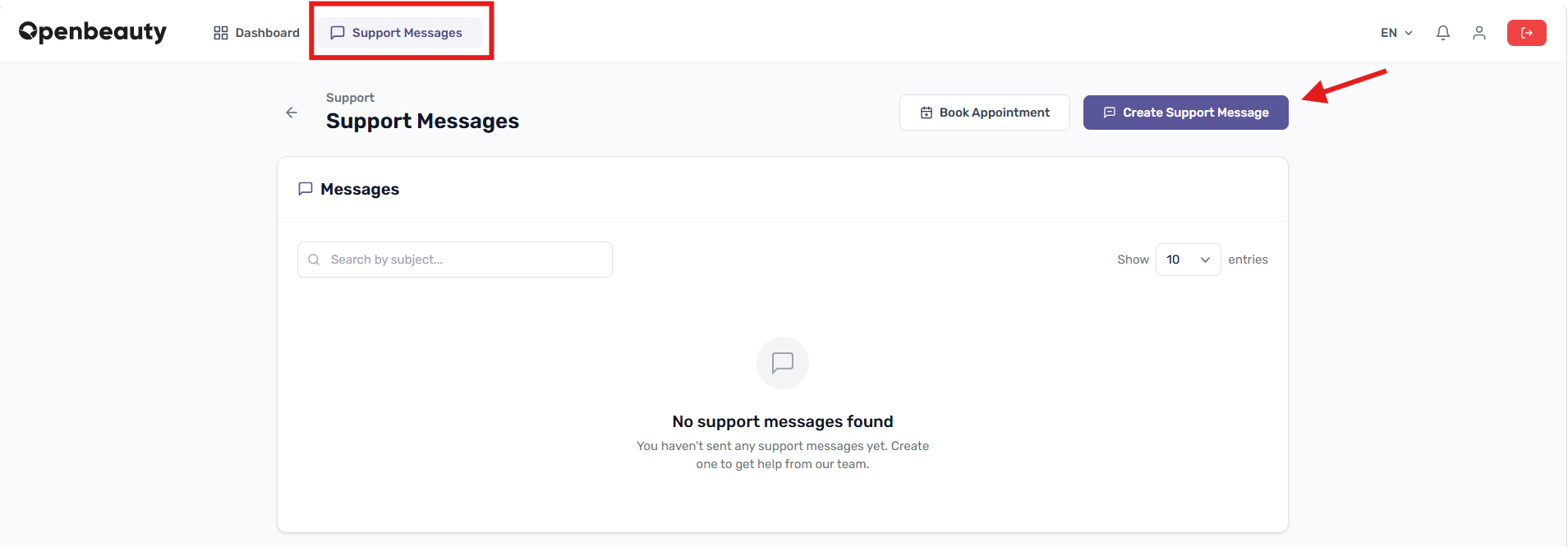
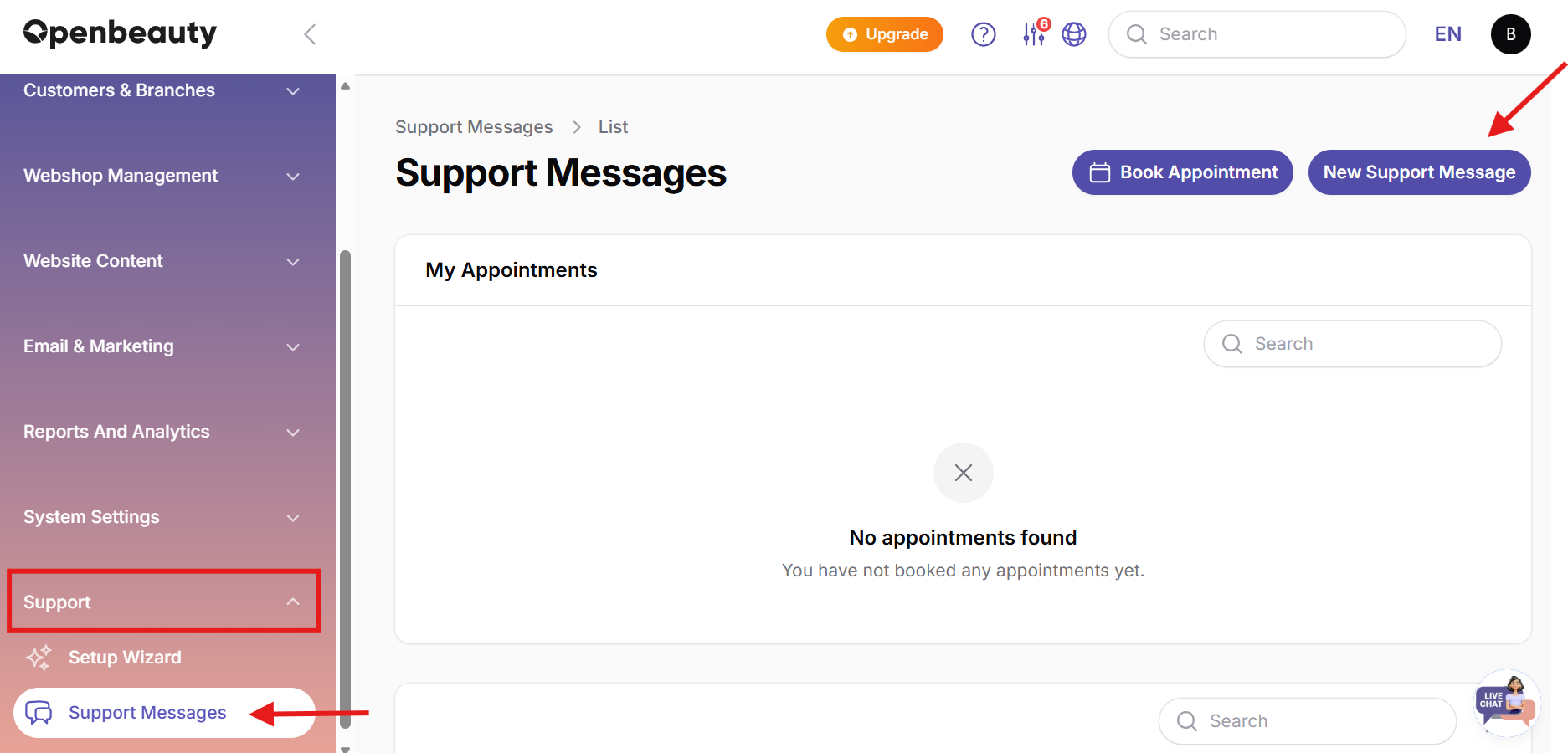
9.1. Creating a support message from the central panel

  1. Go to the Support Messages page in the left menu of the panel.
  2. Click the Create Support Message button in the top right corner.
  3. Fill in the fields in the pop-up window (e.g. message subject, etc.).
  4. After completing the information, click Send Message to submit your request.
  5. Sent messages can be viewed on this page and reopened to read when a response has been provided.

Note: If no support messages have been created yet, the list section will display the warning “No support messages found.”

Booking a support appointment

From the same Support Messages page, you can also schedule an online meeting with the Openbeauty support team.

  1. Click the Book a Support Appointment button.
  2. Select an available date and time.
  3. Confirm your appointment.
  4. You will receive a confirmation, and the meeting will be visible in your support overview.

9.2. Creating a support message from the Admin panel

  1. Go to the Support Messages page in the left menu of the panel.
  2. Click the Create Support Message button in the top right corner.
  3. Fill in the fields in the pop-up window (e.g. message subject, etc.).
  4. After completing the information, click Send Message to submit your request.
  5. Sent messages can be viewed on this page and reopened to read when a response has been provided.