

Sending a newsletter
Explains step by step how to send a newsletter using Openbeauty.
With the Newsletter Email feature in Openbeauty, you can easily create and send professional email campaigns to your customers. To get started, navigate to Email & Marketing and select Newsletter Email. Click Send Newsletter Email to create a new campaign, then enter the email subject, prepare the content, and choose the audience you want to reach.
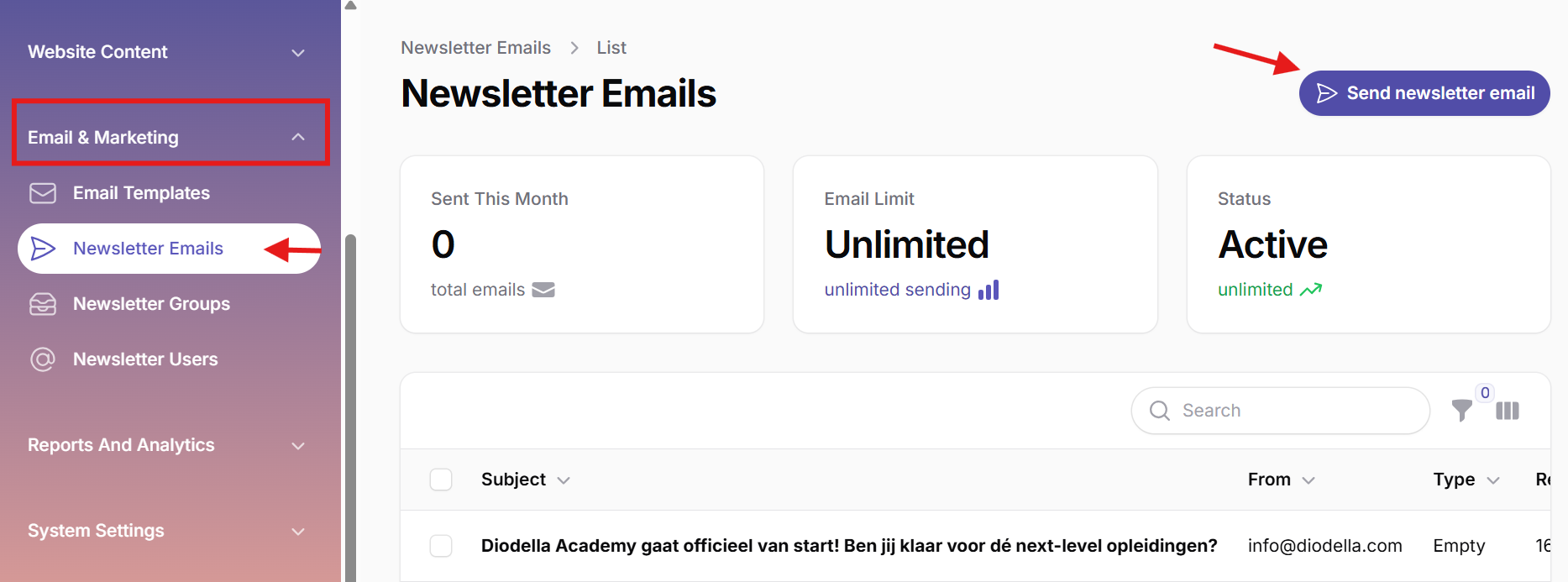
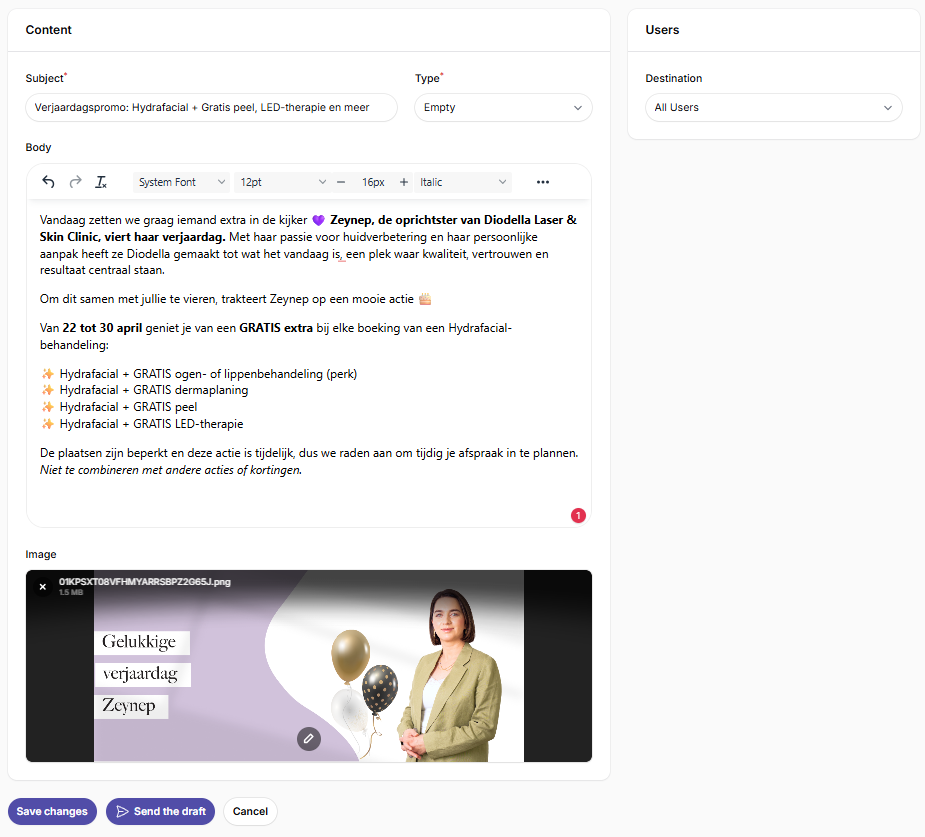
When creating a newsletter, start by entering the Subject. This field is required and plays an important role in your email's open rate. Next, choose the Type of email you want to use. By default, you can select Empty to create your newsletter from a blank template.
Use the Body editor to write and format your email. You can add text, adjust font sizes, insert images, and design your newsletter to match your brand. The image uploaded in the Image section will be displayed as the banner at the top of the email. For the best appearance, we recommend using a high-resolution horizontal image.
Under Users / Destination, select the customer groups or audience segments that should receive your newsletter. This allows you to send targeted campaigns to the right recipients.
If your newsletter is not ready yet, you can save it by clicking Save as draft. Draft newsletters will appear in the overview with the Draft status and can be edited later. Once your newsletter is complete, click Send Newsletter Email to deliver it to the selected recipients. If you want to cancel the process, simply click Cancel.
After sending, the newsletter remains available in the overview, where you can monitor the campaign status and see how many recipients received your email. This gives you a clear overview of all your email campaigns from one central location.