Adding a product
Upload photos, write a description and set the price and stock.
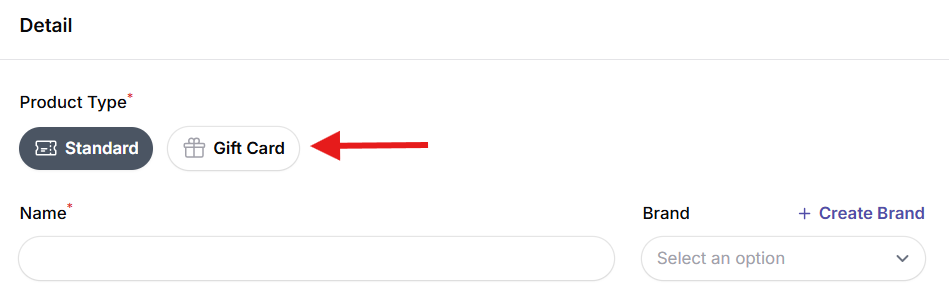
Through Webshop > Products, you can manage all products in your online store and add new ones. When creating a product, you first select the product type: Standard Product or Gift Card.
- Standard Product is used for regular or physical products that you want to sell online, such as skincare products, accessories, or other store items.
- Gift Card is used to offer digital gift cards with a specific amount. Once the order is completed, the customer or recipient automatically receives an email containing a unique gift card code. This code can later be used during checkout in the webshop.
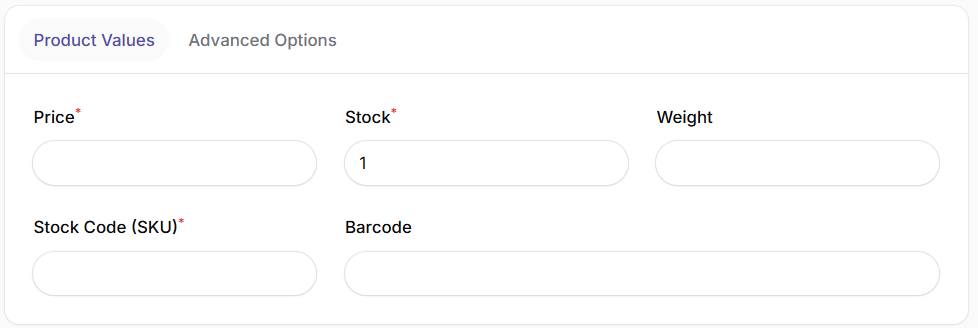
When adding a product, you can enter basic information such as the product name, brand, description, price, stock quantity, and SKU. Optionally, you can also add a barcode, weight, and stock code. Products can be assigned to the correct product group by selecting a main category and subcategory.
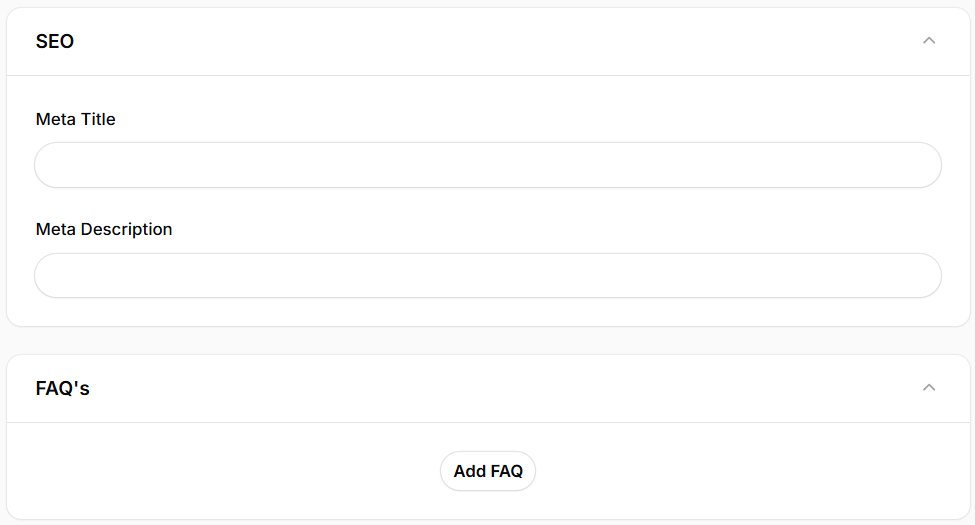
Additional product details can be managed through the advanced settings section. In the SEO section, you can add meta titles and descriptions to improve the product’s visibility in search engines. You can also add frequently asked questions (FAQ) to provide customers with extra information.
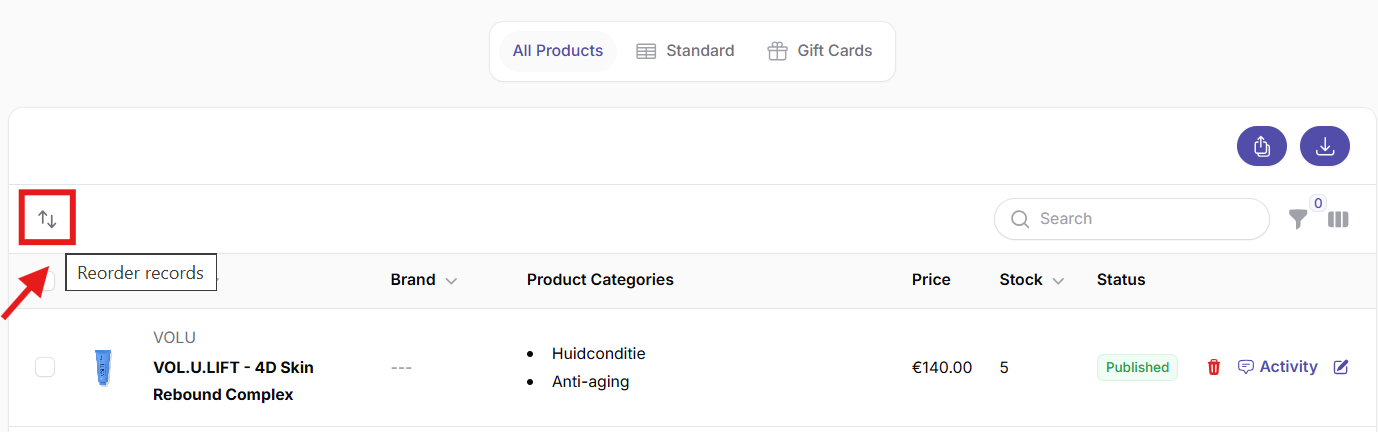
You can also easily manage the order of products and categories. By clicking the arrow icon in the list view, you can activate sorting mode and rearrange items using drag-and-drop. This gives you full control over how products and categories are displayed in your webshop.
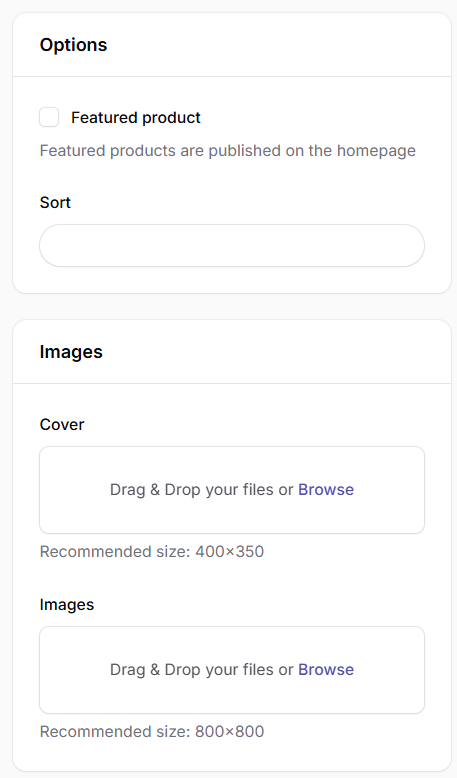
Featured products are displayed on the homepage. This allows selected products to stand out on your website’s homepage, increasing visibility and potential sales. You can also easily manage product images. Both cover images and product gallery photos can be added, allowing you to present your products in a more attractive way and increase conversion rates.