

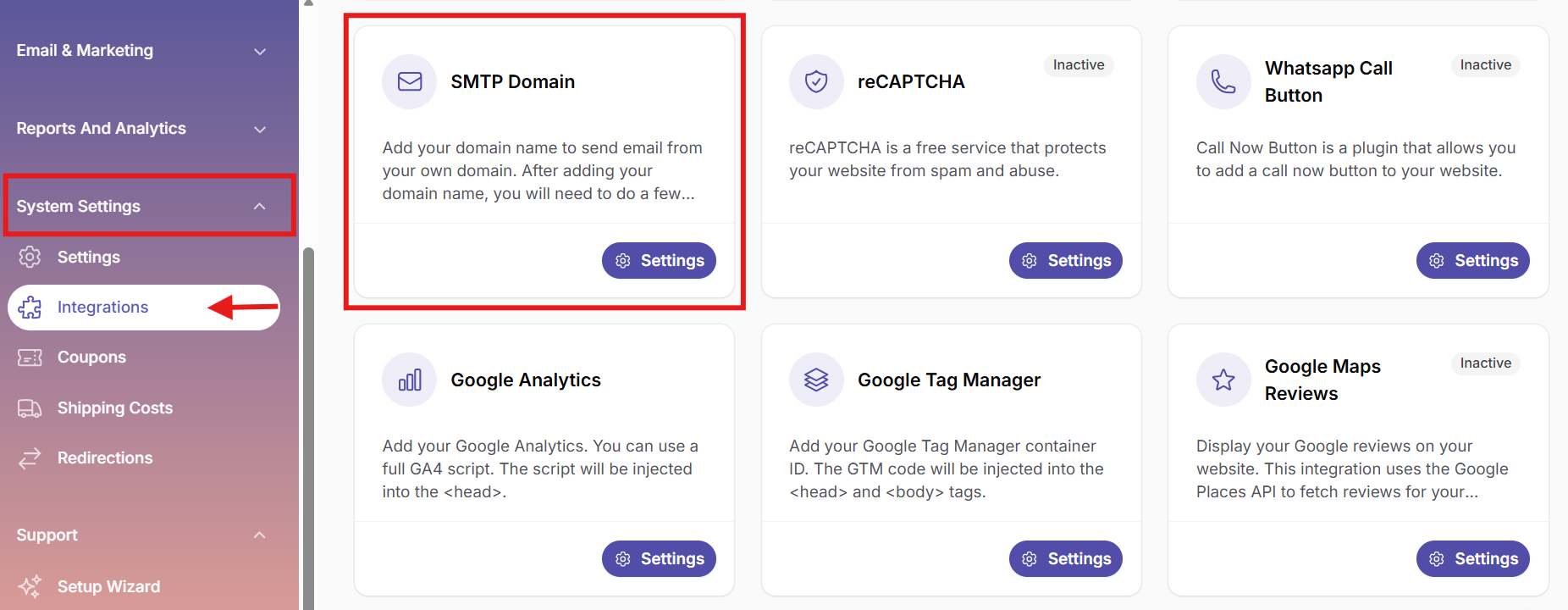
Newsletter SMTP & domain settings
Newsletter SMTP & domain settings
1. SMTP domain not configured warning
When you try to send your first newsletter via the Newsletter Emails section, you may see the following warning:
This warning indicates that no SMTP domain has been configured for email sending. This means that Openbeauty is not yet connected to a technical email delivery setup (sender domain configuration).

2. Add Domain settings
To start sending emails, you first need to configure a sender domain.
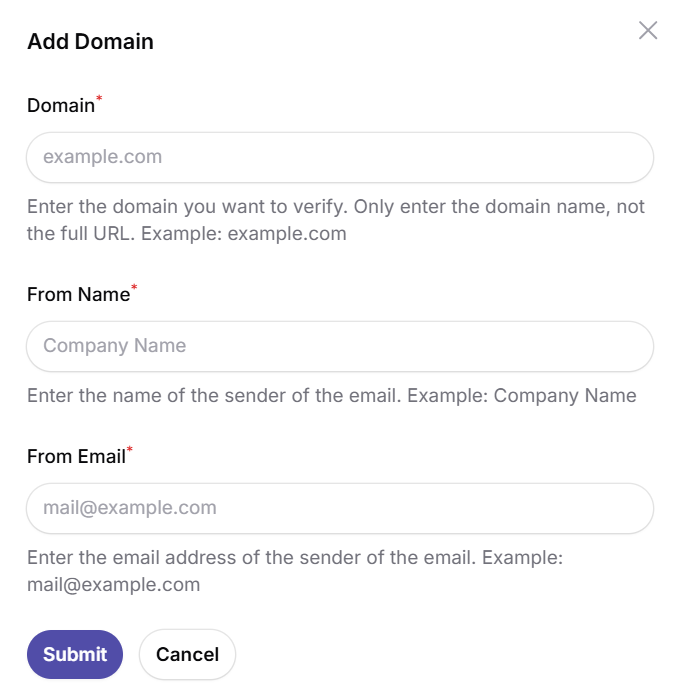
In the Add Domain screen, the following information is required:
- Domain: Enter only the domain name, not a full URL. Example: salonopenbeauty.io
Where do you get this domain?- Your business website domain
- Your hosting provider
- Your web development agency
- Your domain provider (GoDaddy, Namecheap, Combell, etc.
If you don’t have a website yet, you must purchase a domain first.
- From Name: The sender name that recipients will see. Example: Salon name (e.g. Openbeauty Salon)
- From E-mail: The email address used as the sender. Example: [email protected]
You can create this email via:- Hosting panel (Email Accounts section)
- Google Workspace
- Microsoft 365 (Outlook Business)
- Your web agency
If you don’t have a business email yet:
-
- Log in to your hosting panel
- Go to Email Accounts
- Create a new email address (e.g. [email protected])
3. Starting newsletter sending
Once SMTP and domain settings are correctly configured, you can start sending newsletters. In Newsletter Emails > List, you can view all created campaigns.
For each email, you will see:
- Subject
- From
- Type
- Recipients
- Status (Draft / Sent)
- Created At (creation date)